Use the preparation checklist in three steps
- Read a step and do it outside this page
Start with normal-save backups, then follow the linked official Celio Link instructions on the required desktop setup. This page does not create or join a trading session.
- Mark only completed preparation
Tick each item after you have done it. The count tracks your marked steps; it does not check connection status, game restrictions or whether a trade succeeded.
- Keep or restart your list
Export a TXT copy if useful. Marks are kept in this browser when storage works. Use Reset checklist and confirm only when you want to forget these preparation marks.
Record the backup step
A checklist with no items marked, after you have actually made both normal-save backups. Tick only the first backup step. The count becomes 1 / 9 prepared steps. This records your checkmark only; it neither reads the backups nor starts an online trade.
Read preparation, not a connection test
- Step checkboxes
- Each box records your own confirmation. You can untick an individual step to correct it; no game file or live session is read.
- Prepared-step count
- The count runs from 0 to 9 marked items. Even 9 / 9 is not evidence of a working connection or a completed trade.
- Export checklist (.txt)
- Creates a local text copy of checked and unchecked steps. It can be exported even when browser storage is unavailable; the page does not send it to another player.
- Reset checklist
- Opens a confirmation. Confirm clears the saved marks for this tool; Keep progress closes the dialog without clearing them. Neither option changes a game save.
Progress is local to this browser and site origin, shared by this site's language versions. Clearing site data can remove it; another browser or device does not automatically receive it.
Zero marked steps means nothing has been marked in this checklist. It does not inspect what you have already done in the game.
If browser storage is unavailable, the warning means marks may not survive leaving or reloading. You can still use the checklist and export the current text during this visit.
Use Reset checklist, read the confirmation, then confirm to return to 0 / 9. Choose Keep progress to cancel. Reset does not disconnect a session, change a save or delete previously downloaded TXT files.
Tool controls require JavaScript initialization. If they stay unavailable, refresh this page or read the linked sources.
Your trade preparation checklist
Tick off your setup as you go. Progress stays in this browser, including when you change language.
What must I check before Pokemon Monomyth trading?
Both players should be using Monomyth. Team Monomyth rules out trading with official Generation 3 games. Some Pokémon and held items are also restricted by the story, so a successful connection does not guarantee that the particular trade is permitted.
Back up each player's normal save before the session. If one player usually plays on a phone or flash cart, prepare a desktop working copy first. The published Celio workflow requires a computer running Windows, macOS or Linux; it is not a direct phone-to-phone procedure.
Get the Celio client from the linked project
Open Celio Link from Team Monomyth's Trading page and choose Online Emulator Link. Select mGBA and follow its Download Script route to the client package for your operating system. The team's instructions use a specially configured mGBA build, so do not assume any installed copy already has the needed integration.
Extract the package, start its emulator and open Tools, then Scripting. In that window, use File, then Load Script, and choose the packaged .lua file. For platform-specific packaging, use the current release instructions: the team's guide notes that its macOS package is grouped with the Linux download and Linux may need executable permission.
Open Online Emulator Link and select mGBA before downloading the script.
Team Monomyth tutorial ↗Open full-size image ↗Join the same session, then start the in-game link
If the browser prompts to let the Celio site communicate with the client, confirm that you are using the expected site and application. Wait until the site reports a connected server. One player creates the session ID; the other joins that same session.
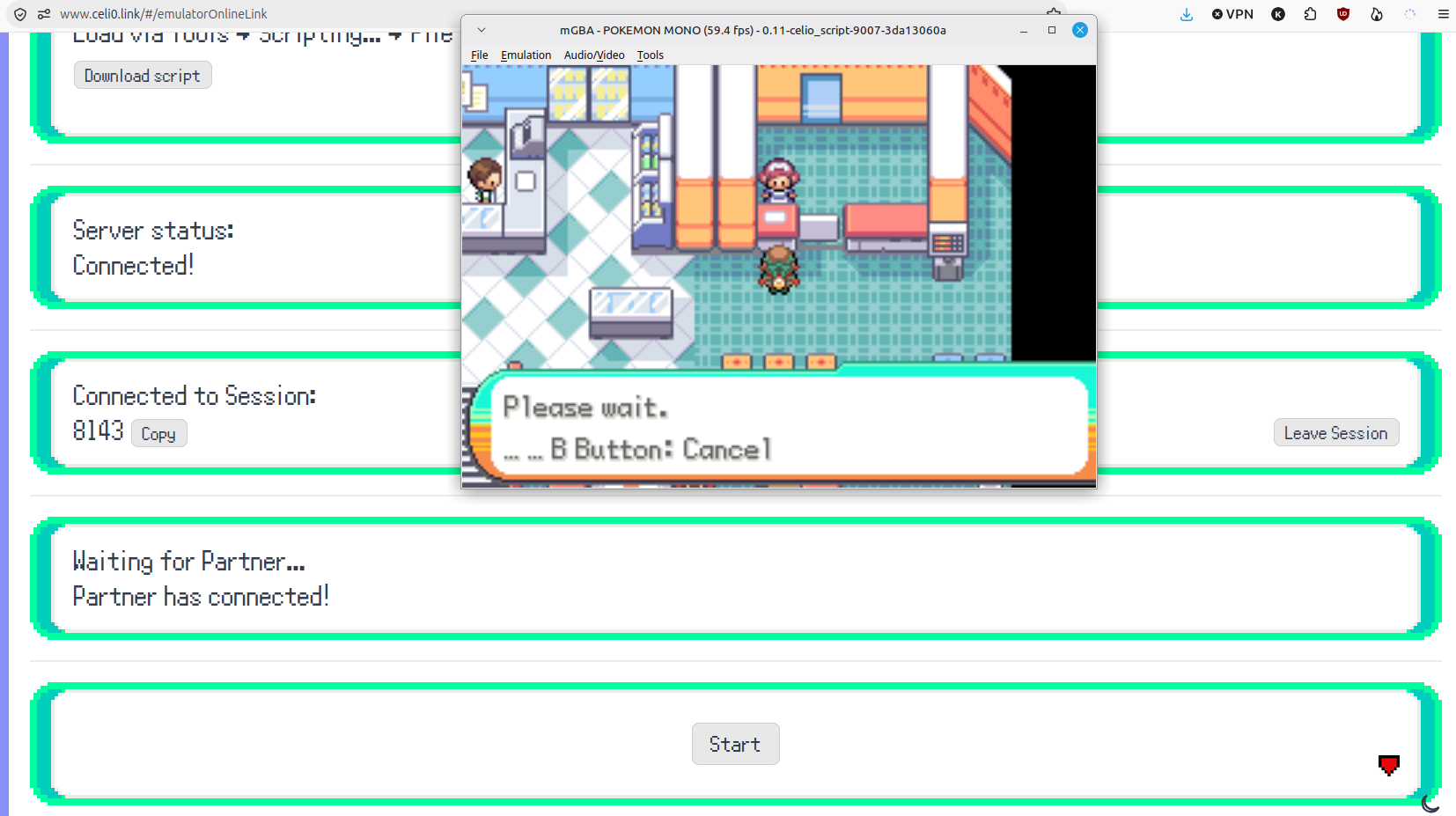
Load the patched Monomyth game and the correct save in the client. Both players go to the Pokémon Center's Link Trades counter. Only then use Start on the Celio webpage. This order separates a website/client connection from the in-game link: being in the same web session is only one stage of the process.
When the activity is finished, use Disconnect on the website. Before returning to another emulator or device, preserve the updated save and confirm that the expected progress loads. Keep the pre-trade backup until that check succeeds.
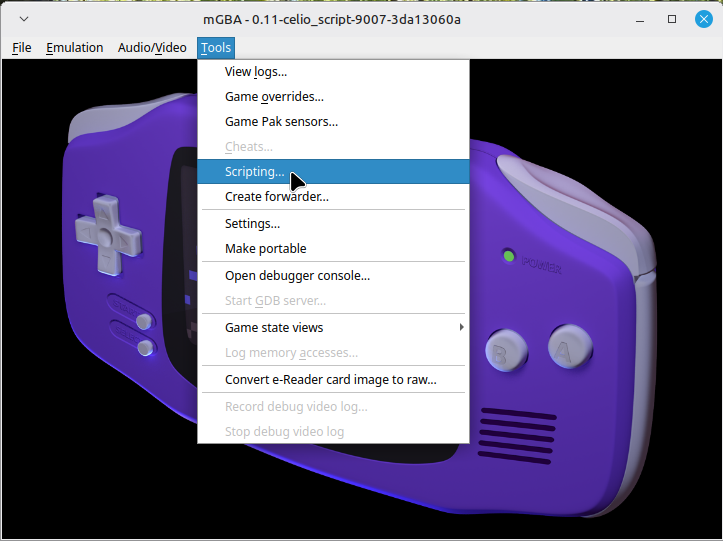
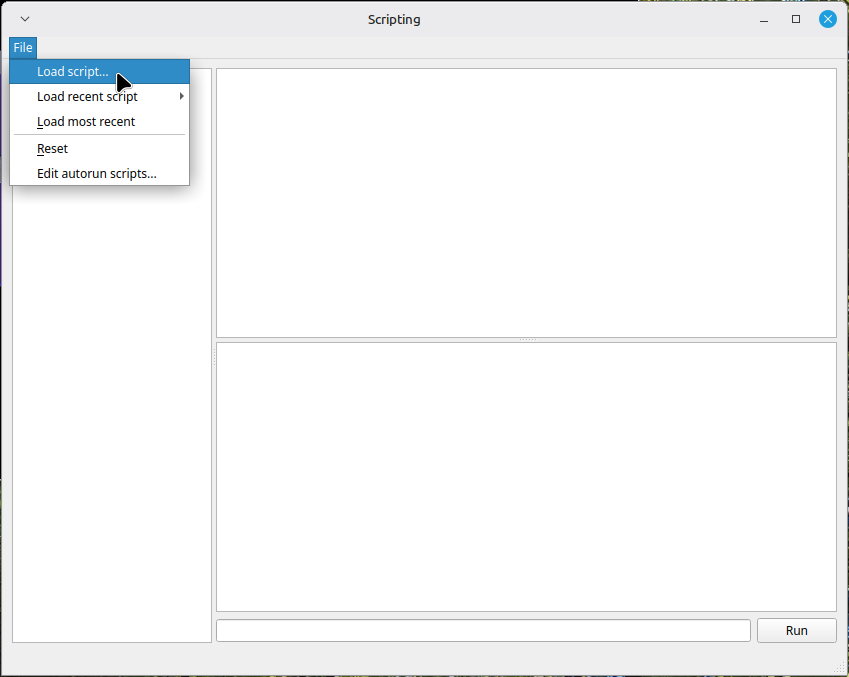
In the special mGBA client, load the downloaded Lua script through Scripting → File → Load Script.
Team Monomyth tutorial ↗Open full-size image ↗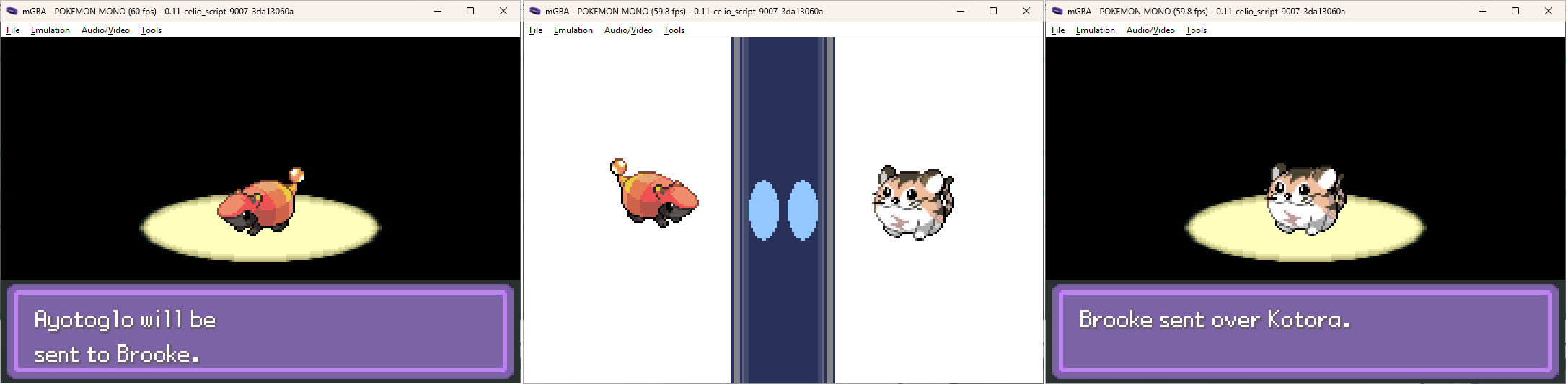
The tutorial shows the connected server and session field. Both players must use the same session.
Team Monomyth tutorial ↗Open full-size image ↗Understand why a particular trade may be refused
The team's FAQ says high-level Pokémon may require story progress beyond simply having many badges. It also explains that a found starter initially belongs to someone else, and that permission matters before trading or releasing it. A refusal can therefore be a progression rule rather than a network fault.
Story-important Pokémon and rare or story-important held items can also prevent trading. Do not respond to every blocked trade by reinstalling the client. Note the game's exact message and the Pokémon's held item, then compare that with the team's restrictions. The published FAQ does not provide a complete level threshold table.
Real hardware and battles use different routes
For two real GBA systems, Team Monomyth describes two suitable flash carts and a physical GBA Link Cable. It explicitly excludes the GBA Wireless Adapter. Its alternative for a flash-cart save and a PC player is to copy the save to desktop for Celio, then return the updated save to the card.
Link Battles are not supported by the modified battle engine. Although the trading FAQ mentions a QR-code team export and the custom Showdown project Athanto Colosseum, the separate Showdown page currently says not yet open and gives only a tentative late-2027 target. Do not plan a battle session around it being available now. This guide does not claim to have tested team export or a live Celio session.
Track preparation without confusing it with a live test
Use this page's checklist to record the steps you have personally completed: backup, client and script, shared session, correct loaded save, both players at the counter, and a clean disconnect. A checked item records your progress; it does not inspect Celio's connection, validate a save or confirm a successful trade.
If a later stage fails, return to the first unconfirmed stage. For example, no server connection belongs to the client/browser setup, while a refused Pokémon after entering the counter may be a game restriction. Keep those failure types separate in a support report.
Questions, answered
Can I trade with Pokémon Emerald, FireRed or another official Generation 3 game?
Why does the game say I cannot handle a Pokémon yet?
Can I use the GBA Wireless Adapter?
Does a connected Celio session mean the game is ready to trade?
Can I battle through the same link?
How can a phone player prepare for a Celio trade?
Sources & verification
- Team Monomyth: Link Trading Guide and FAQ ↗
- Team Monomyth: current Showdown development status ↗
- Celio Link: Online Emulator Link ↗
- Celio mGBA client release linked by Team Monomyth ↗
Updated · Monomyth Field Guide