Check a local file in three steps
- Choose an extracted game file
Select your own local game file, rather than a ZIP archive or BPS patch. Choosing it does not start the check or upload it.
- Start the local check
Choose Start local check. The tool checks the size first, then calculates CRC32 for either reference size. Watch the progress; Cancel check stops an active calculation without changing the file.
- Read the result before continuing
A match identifies a size/checksum reference from the official v1.0 / v1.1 / v1.2 patch. It does not run or repair the game. Use the official patcher for patching; review the filename before sharing an optional TXT diagnostic.
Understand a size warning
An illustrative 1,024-byte test file, not a game ROM. In a browser that supports local file reading, select that small file and choose Start local check. The size warning appears and CRC32 is not calculated. The file is not changed; this warning alone does not diagnose another game version.
Understand the local check
- Local game file
- Choose one extracted file. Its contents are read locally for this check; nothing is uploaded or patched.
- Size and CRC32 references
- Emerald base: 16,777,216 bytes / 1F1C08FB. Output: 33,554,432 bytes; v1.0 CRC32 8441C61B, v1.1 CRC32 6EA29055. The tool calculates the selected file’s CRC32.
- Start local check / Cancel check
- Start begins a new measurement. Cancel is available during reading and stops that run; the selected file remains unchanged.
- Download diagnostic (.txt)
- When enabled, this creates a local text copy of the current measurement. It includes the selected filename, size and CRC32 when calculated. Check those details before sharing it yourself.
Base match and output match are different results. Both compare declared size and CRC32 only; neither proves ownership, cryptographic authenticity or emulator compatibility.
Choose a file before starting. Selecting it alone leaves the tool ready without reading it.
A different size skips CRC32. A checksum mismatch does not reveal the cause. If reading fails, select the file again; if the browser lacks local-file support, use a current browser or the official patcher.
During a run, use Cancel check and then start again. To replace the current result, select another file. These actions do not remove a TXT copy already downloaded.
Tool controls require JavaScript initialization. If they stay unavailable, refresh this page or read the linked sources.
Select a file, then start the check.
- Expected Emerald base
- 16,777,216 bytes · CRC32 1F1C08FB
- Expected Monomyth v1.0 output
- 33,554,432 bytes · CRC32 8441C61B
- Expected Monomyth v1.1 output
- 33,554,432 bytes · CRC32 6EA29055
- Expected Monomyth v1.2 output
- 33,554,432 bytes · CRC32 C17B3CF0
This compares declared size and CRC32 only. A match is not proof of lawful ownership, cryptographic authenticity or full game/emulator compatibility. Let the official patcher validate the base before applying a patch.
Official v1.2 BPS metadata checked 2026-11-16; released November 15, 2026. Earlier v1.0 and v1.1 metadata references are retained separately.
- Official patcher and requirements ↗
- Official BPS metadata source · v1.0 ↗ · Metadata checked 2026-11-01
- Official BPS metadata source · v1.1 ↗ · Metadata checked 2026-11-05
- Official BPS metadata source · v1.2 ↗ · Metadata checked 2026-11-16
- BPS checksum format ↗
Keep the current result for yourself or review it before asking for help.
Complete a check to enable the TXT download.
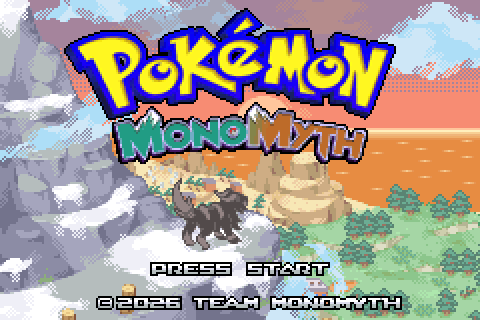
How to play Pokemon Monomyth 1.2: checks before patching
The official download configuration identifies Version 1.2, released November 15, 2026. Read the three version-labelled output references in the checker before deciding whether your selected file is a clean base or an already patched game.
The expected base remains Emerald. Keep it separate from patched outputs, let the official patcher validate it, and check a normal save after upgrading. A declared CRC32 match does not test game or emulator compatibility.
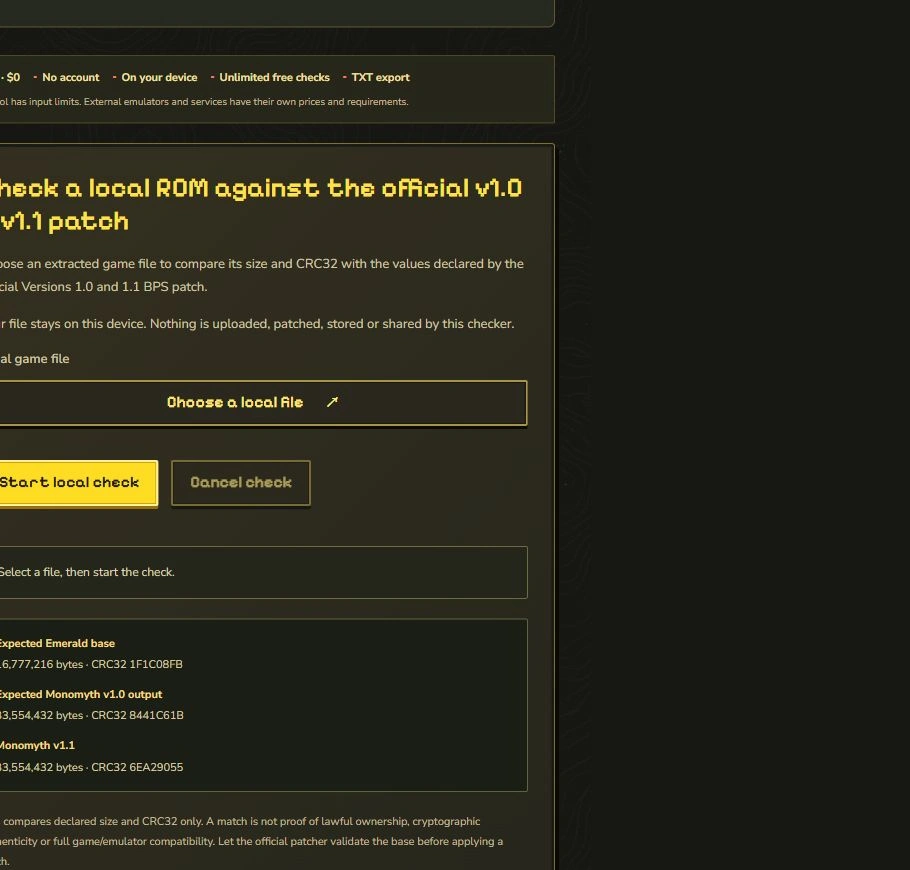
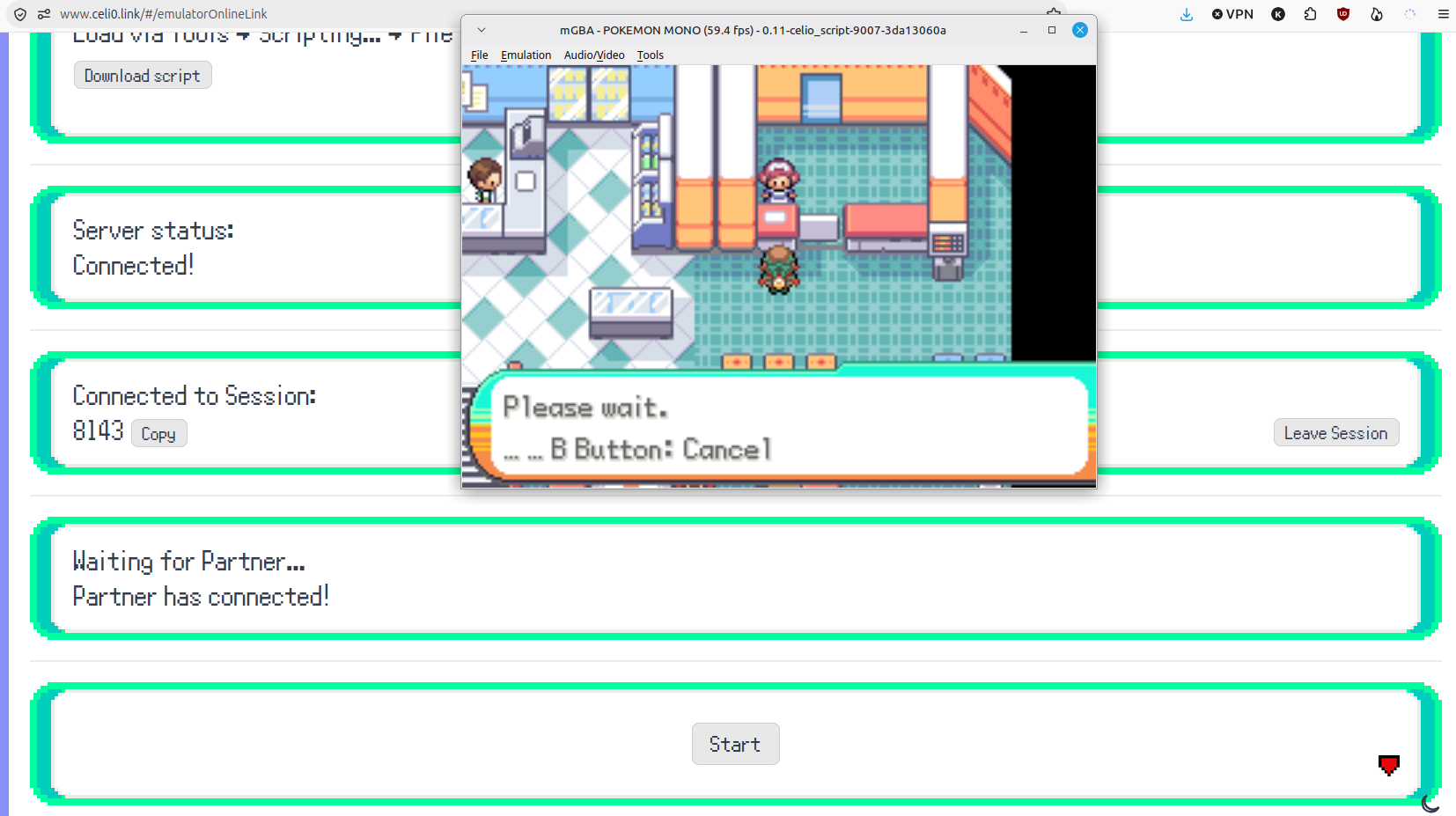
Choose a local file, then check its identity. This picture shows the controls, not a verified ROM result.
Field Guide interface · example onlyOpen full-size image ↗How do I prepare the files to play Pokemon Monomyth?
Use the team's download page as the patch source. The project is distributed as a modification of Emerald rather than a standalone game download. This guide does not supply an Emerald ROM. The team's About page places responsibility for an authentic original copy and applicable backup rules on the player.
Keep your original file separate from the patched output. A small folder with an untouched base, a working copy and your saves makes it easier to undo a mistake. Renaming an unrelated game file to Emerald does not make it a valid base.
- A clean, legally obtained Emerald ROM for the official patcher to validate.
- The current patch from monomyth.jp/download.
- An emulator listed by Team Monomyth for your device, or a suitable real-hardware setup.
- A separate backup folder if you already have Monomyth progress.
Apply the patch on the official website
Open the official Download page, choose the base ROM in its file selector and read the displayed ROM and patch information. The page provides CRC32, MD5 and SHA-1 fields and enables validation in its configuration. Use the requirements shown by that page rather than a checksum copied from an unrelated guide.
Select Apply patch and keep the output named by the patcher. A manual .bps link supplies a patch, not a ready-to-run game. If validation fails, investigate the base file; emulator settings cannot repair the wrong patch input.
Open the patched output in your emulator
Import or open the patched game rather than the untouched Emerald file or the .bps patch. On desktop, the team recommends mGBA. On mobile, choose an explicitly listed option and check the emulator core when the app offers several. The name RetroArch alone does not identify the core running your game.
First reach the game's normal opening screens and confirm that the emulator accepts input. Treat this as a launch check, not proof that every feature works. In particular, being able to play on a phone does not establish support for the desktop online-trading workflow.
Make a first-save check before investing time
When the game lets you save normally, make an in-game save, close it cleanly and reopen it to check that your progress returns. This is our practical verification step, not a claim that we have tested your device. A successful first save helps expose a wrong file location or import workflow early.
Keep the ROM and its matching save identifiable. Before changing emulator or game version, preserve a copy of the last known working save. Do not assume an emulator save state is interchangeable with the game's normal save file.
Troubleshoot the stage that failed
A rejected input belongs to the patching stage. A patched game that will not start belongs to the launch stage: confirm which file you opened, then check the team's device list and core selection. Missing progress belongs to the save-import stage. Keeping these separate avoids repeatedly patching a good file to solve an unrelated emulator issue.
When asking for help, record the patch version, device, app name, selected core and the point of failure. Do not publish your original ROM. These details make a compatibility report more useful than a general 'it does not work' message.
Questions, answered
Is the .bps file the Pokemon Monomyth game?
Why does the official FAQ still mention a future release?
Can I solve a rejected ROM by changing emulator?
Does this guide include a ROM download?
Can I use an existing save immediately?
Should I patch a file that already matches a Monomyth output?
Sources & verification
- Team Monomyth: official patcher and emulator guide ↗
- Team Monomyth: distribution and ownership statement ↗
- Team Monomyth: FAQ ↗
Updated · Monomyth Field Guide