Compare save filenames in three steps
- Type the ROM filename
Enter its filename ending in .gba, without any folder path. This is a text field: no ROM is opened or selected.
- Type the normal-save filename
Enter the corresponding .sav or .srm filename and choose Check names. Compare a normal game save, not an emulator save-state name.
- Apply only the naming advice
Read whether the base names match exactly, differ by case, or differ otherwise. Keep a backup and verify actual progress in the emulator; an optional TXT contains the typed filenames.
Compare matching base names
ROM: monomyth_v1_0.gba. Normal save: monomyth_v1_0.sav. Type these two example names and choose Check names. The base-name match message appears. It does not prove that either file exists, the save format is correct or your progress will load.
Understand the filename result
- ROM filename
- Example: monomyth_v1_0.gba. Type the name only, without folders, slashes or a drive prefix.
- Normal save filename
- Example: monomyth_v1_0.sav. A .srm name is accepted for comparison, but changing its extension does not convert or validate the save contents.
- Check names
- Compares the text before the extensions. Exact case matters for the clean match; leading and trailing spaces are trimmed.
- Download diagnostic (.txt)
- For valid filename inputs, a local TXT can preserve the entered names and conclusion. Review names for personal information before sharing; no file contents are included.
A match is naming guidance for the documented folder setup, not save repair or compatibility verification. A case warning means letters match only when case is ignored; a mismatch means the base names differ.
Fill both filename fields to compare. The initial example is guidance, not a check of a file on your device.
Use a .gba name and a normal .sav or .srm name, without paths or forbidden filename characters. The tool does not inspect format, file size or game data, and renaming .srm to .sav is not a conversion.
Edit either field to clear the previous result and diagnostic. Clear both fields to start again, then type the new names. The page does not rename or delete any file, including downloaded TXT copies.
Tool controls require JavaScript initialization. If they stay unavailable, refresh this page or read the linked sources.
Check your ROM and save filenames
Type names only. No files are selected or uploaded. This checks naming, not file contents or emulator compatibility.
Example: monomyth_v1_0.gba and monomyth_v1_0.sav.
Keep the current result for yourself or review it before asking for help.
Complete a check to enable the TXT download.
Which Pokemon Monomyth save file should I back up?
Find the normal game save exported or stored by your current emulator or flash cart. An emulator's quick-save or save-state feature may produce a different kind of file. Do not select a file solely because it has the newest timestamp: first confirm which export option represents the game's normal saved progress.
Record the game version, emulator or core, filename and device. Our practical recommendation is to keep a dated backup separate from the folder you will use for trading. The purpose is to make the last known working progress recoverable if the import loads the wrong file or a new session overwrites it.
Before moving to 1.2, keep separate backups of the current normal save and the older game output. Generate the new output from a suitable original base through the official patcher; do not repeatedly patch an older hack output. Match the new game and normal-save names as your emulator expects, then load the save and compare player, location and party. Matching names do not establish format or version compatibility. A save state is not a substitute for this normal-save check.
Match the game and save in the desktop working folder
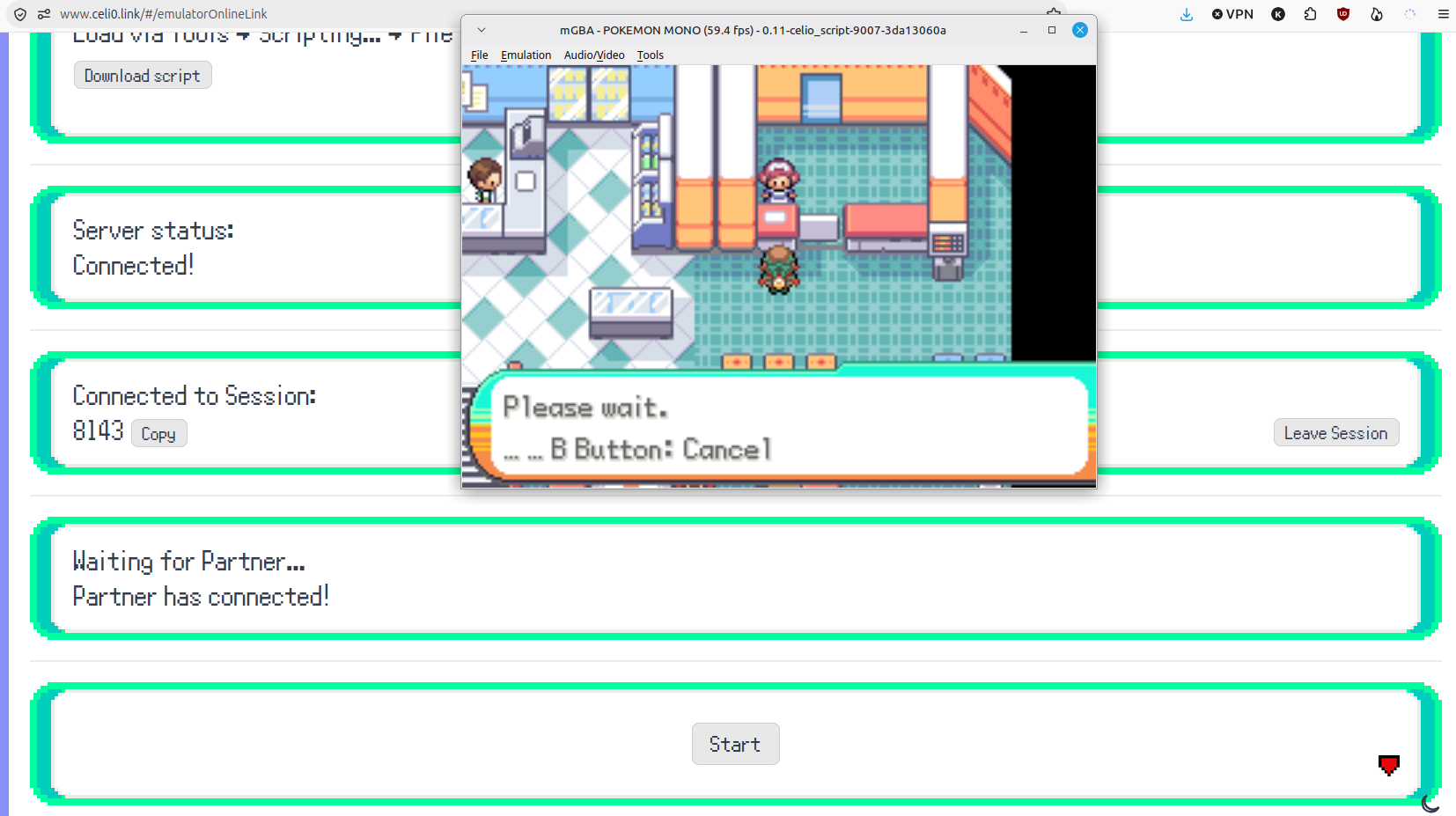
For a player switching to the Celio mGBA client, the team's guide puts the game and save in the same directory with matching names before their extensions. For example, a working pair could be monomyth_v1_0.gba and monomyth_v1_0.sav. This example illustrates the naming rule; it is not a claim that every emulator uses that storage layout.
If the client starts a fresh game instead of loading your progress, stop before creating a new save over the working files. Check the folder, base filename and the file you exported. Preserve both the backup and any unexpected output while investigating.
Treat .srm and .sav as a format question
Team Monomyth notes that another emulator may use an extension such as .srm and describes renaming it for the desktop trading workflow, then changing it back afterwards. Apply any rename to a copy. A filename extension is a label; changing that label does not transform an arbitrary file's internal format.
Before relying on a renamed copy, load it in the intended client and check recognizable progress. After the session, export or locate the updated normal save and verify the return import in your original emulator. If the load fails, consult that emulator's own import/export documentation rather than repeatedly renaming the only original.
Libretro identifies .srm as the mGBA core's battery save and .state# as a separate save state.
Move a flash-cart save through desktop and back
The team's FAQ describes copying the save from the flash cart's SD card to PC, using it with Celio Link, then copying the updated save back to the card. Keep the card's original save as a separate backup before replacing the active file. The team's page does not give a universal directory or file-size rule for every cart.
After the return copy, open the game on the original device and confirm the expected post-trade progress. A completed file copy only confirms that bytes were transferred; the in-game load is the useful check that you selected the right save. Retain the pre-transfer backup until you have verified that result.
Use a two-check transfer record
Before the move, note a recognizable checkpoint such as your player name, location and party. After loading the working copy on desktop, compare those details. Repeat the comparison when returning the updated save to the original device. This is an editorial verification method that makes a wrong import easier to notice; it is not a tested recovery guarantee.
This guide does not prescribe save sizes, padding, hex edits or automatic converters. Those operations require format-specific evidence that the team's trading page does not provide. If you cannot identify a valid normal save, leave the original intact and resolve that step before starting a trade.
- Keep: the untouched normal save and a note of its source app/version.
- Check before trading: the expected progress loads in the desktop client.
- Check after returning: the updated progress loads on the original device.
- Stop on mismatch: do not overwrite the backup with an unverified result.
What the filename check on this page can tell you
Enter the ROM and save filenames to compare the labels before a desktop transfer. Matching text before the extension makes a naming mistake easier to spot. Type names only; the check does not need the ROM or save file itself.
A matching-name result does not inspect the save's contents, size, game version or emulator format. It cannot prove compatibility or recover a damaged save. Keep the backup and perform the two in-game load checks even if the labels match.
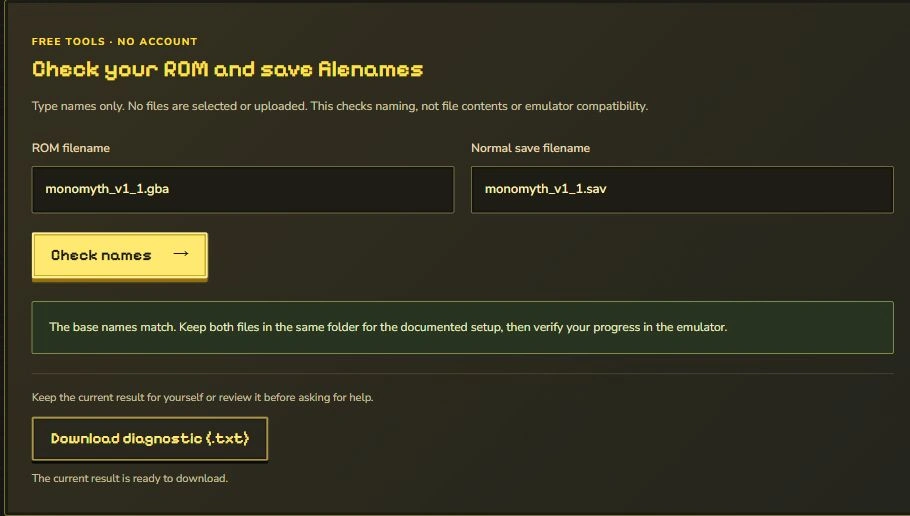
Example filenames match. This checks names only; load your actual progress before relying on a transfer.
Field Guide interface · example onlyOpen full-size image ↗Questions, answered
Does renaming .srm to .sav always convert a save?
What save-file size does Monomyth require?
Can I use an emulator save state for Celio Link?
Why did the desktop client show a new game?
Can a real-hardware save be used with a PC friend?
The two filenames match. Is my transfer verified?
Why will mGBA not save on Windows?
Sources & verification
- Team Monomyth: save placement, extensions and flash-cart transfer ↗
- Team Monomyth: supported emulators ↗
- Libretro: mGBA core ↗
- mGBA FAQ: Windows saving ↗
Updated · Monomyth Field Guide